
Getting started with Mastodon
Have you created an account via the university portal, as described in ‘Create an account’? If so, you have now arrived at the Mastodon homepage.
Below, we provide a brief overview of Mastodon’s user interface. (All screenshots show the view in a web browser on a desktop PC; if you’re using Mastodon on a smartphone, it will look slightly different).
Not a fan of Dark Mode?
The default setting on Mastodon is Dark Mode, which means a black background with white text. If you’d prefer a light background, click on ‘Settings’ in the right-hand sidebar, then click on ‘Design’ in the left-hand sidebar, and select the ‘Mastodon (Light)’ option under ‘Design’.
In principle, three columns are displayed: on the left, the option to create a new post; in the centre, the home page is displayed initially; and on the right, a sidebar for switching between different views.
Left-hand column: write a new post
Here you can write and publish a post. Mastodon is a microblogging network (similar to the former Twitter or Bluesky), so the length of a post is limited to 500 characters.

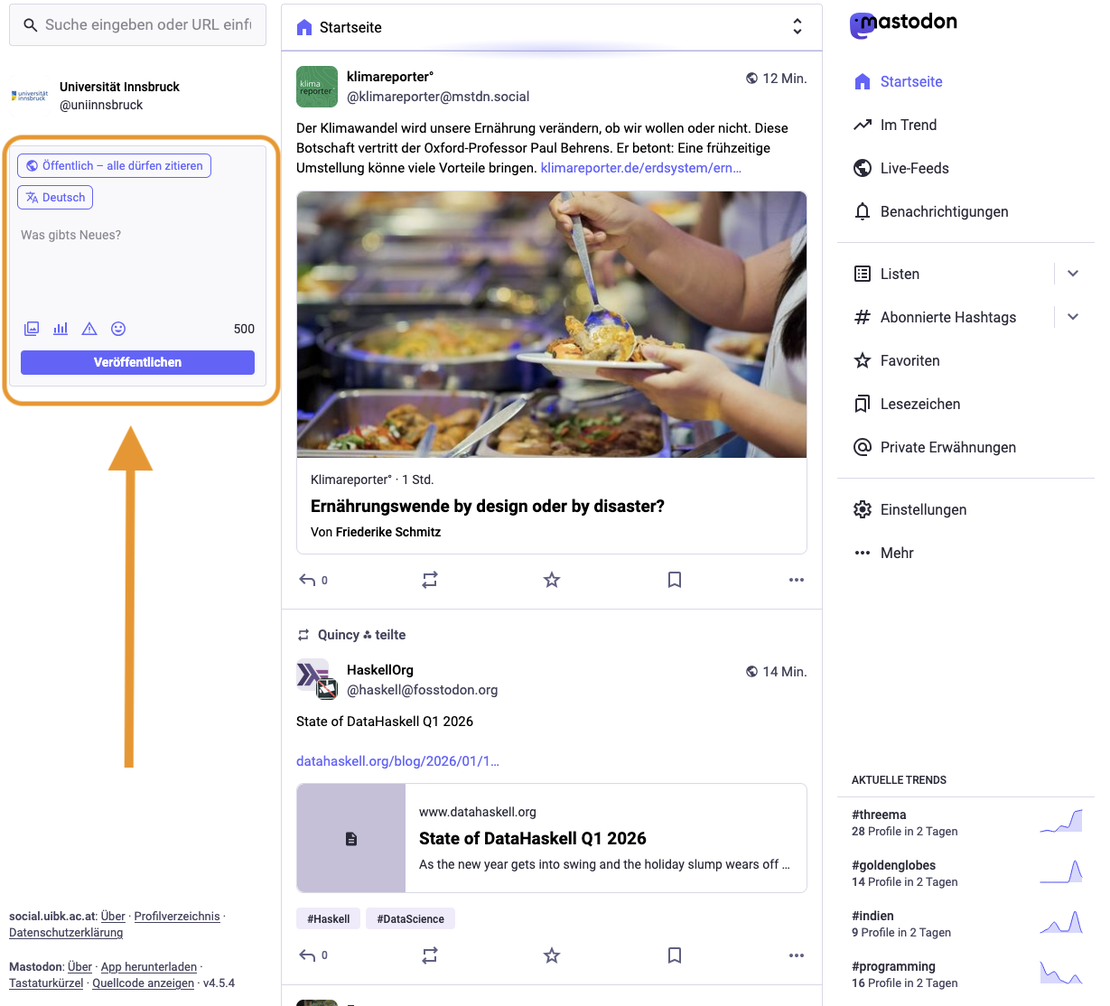
By clicking on ‘Public – anyone may quote’, you can set who can view the post and who can quote it.
a) Visibility settings:
- Public – default setting: Anyone inside or outside Mastodon can see it.
- Public (quiet): Is promoted less widely; for example, it does not appear in ‘Trending’.
- Followers only: Only followers can see the post.
- Private mention: Functions as a private message on Mastodon. Only the profiles you tag with @ can see the post.
b) Quotability settings:
- Anyone may quote me: Anyone in the Fediverse may quote the post, i.e. add their own comment and share it
- Only my followers may quote me
- Nobody may quote me
Feel free to include images, links, polls or emojis. You can also add a content warning by clicking on the warning sign; this means the content of the post will only be displayed if users deliberately click on it.
Tip: When you insert an image, you can also add an image description for visually impaired users by clicking on ‘ALT’.
Middle column: Home page
In the centre, you’ll initially see the home page. This is a feed where the following posts are displayed:
- Posts from accounts you follow
- Posts with hashtags you’ve subscribed to
- Posts from groups you follow

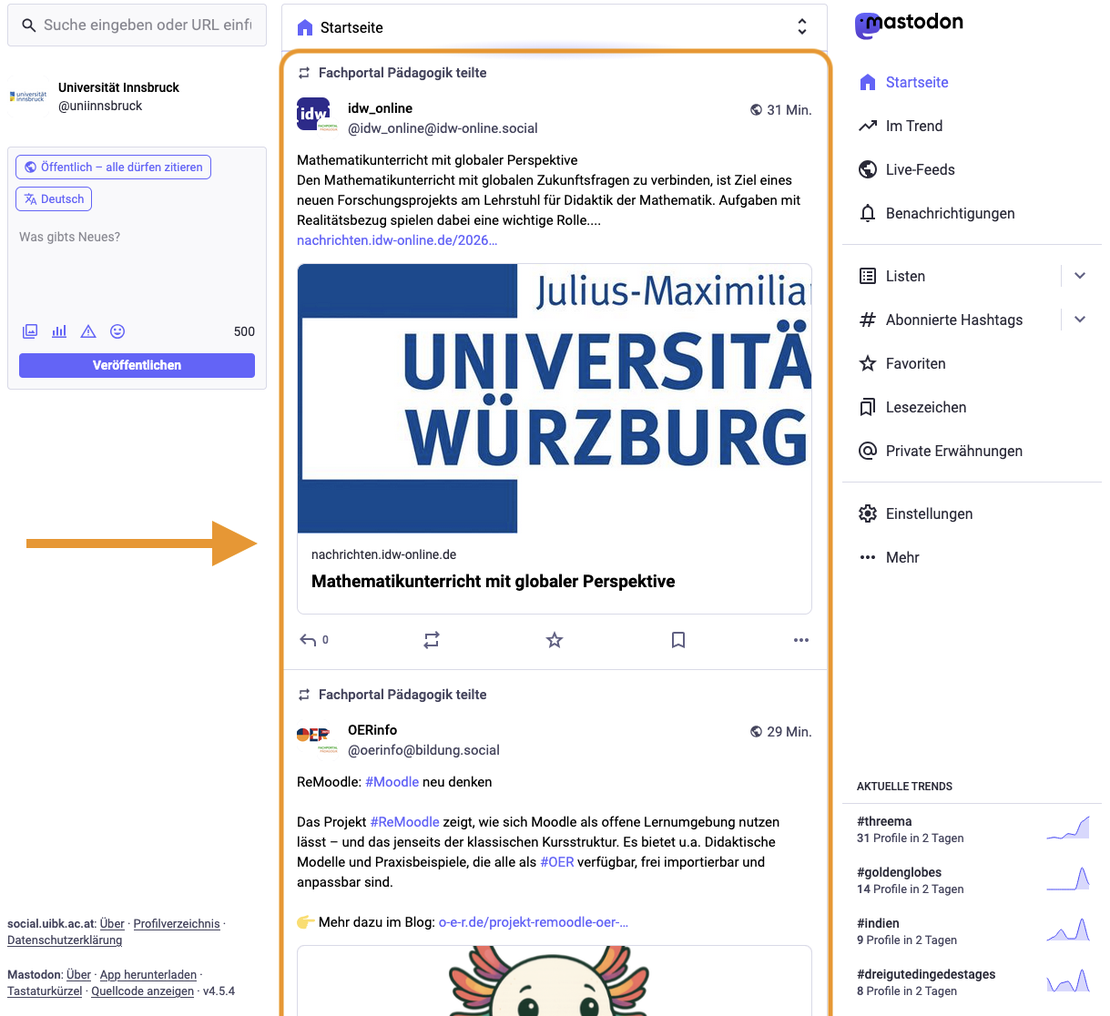
There’s probably not much happening on your home page yet, as you’re not following anyone, apart from perhaps the University of Innsbruck’s account. You can find out how to connect with the right people in Part 3 of our guide: "Tips for using Mastodon".
You can reply to individual posts, share them with your own followers (‘boost’ them), mark them as a favourite with the star icon, or add them to your bookmarks.
Good to know: The feed is organised chronologically. There are no automated algorithms that show you specific content, as is common on most other social media platforms. However, you can curate your feed yourself in various ways to ensure it better reflects your interests, for example by Create lists.
Right-hand column: various options
In the right-hand column, you can switch between different views. These are then displayed in the centre (i.e. where the home page feed is initially displayed).
Trending
Click the ‘Trending’ button to see what’s currently attracting a lot of attention on your instance.

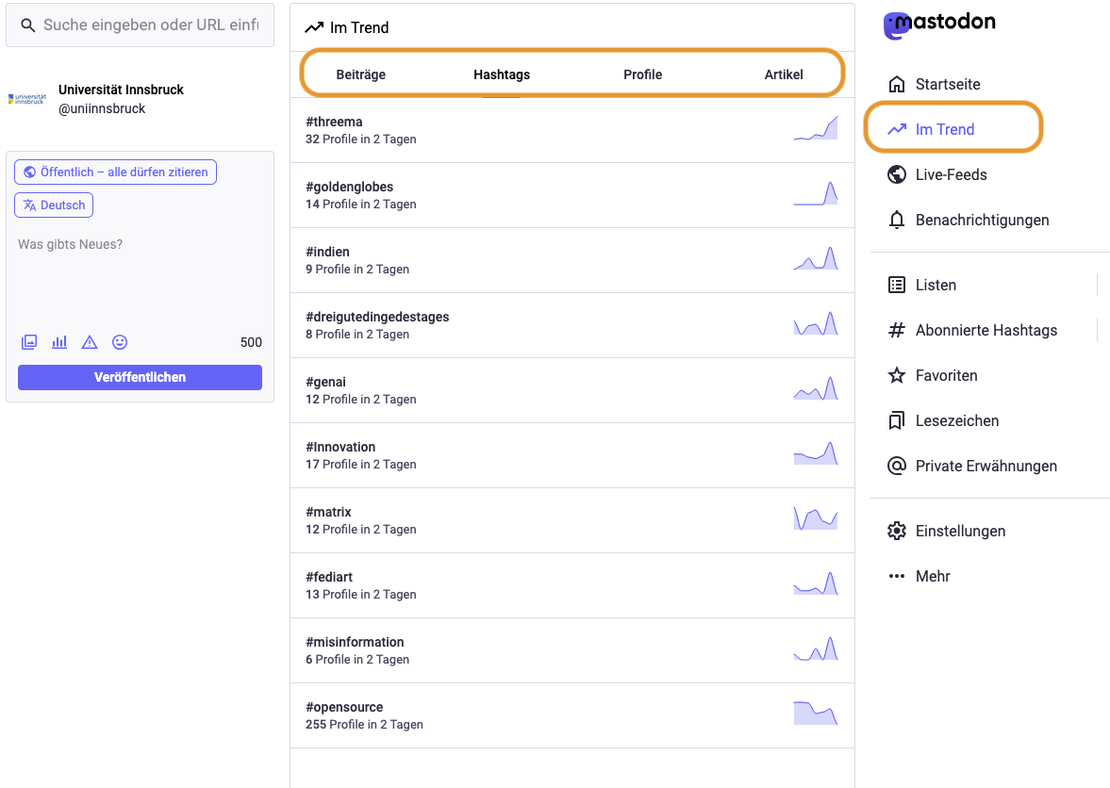
Here you can switch between:
- Posts: Only displays results if you also enter a term in the search bar at the top left.
- Hashtags: Shows you currently popular hashtags on your instance.
- Profiles: Suggestions for popular profiles on your instance.
- Articles: These are links that are currently being shared frequently on your instance.
Live feeds
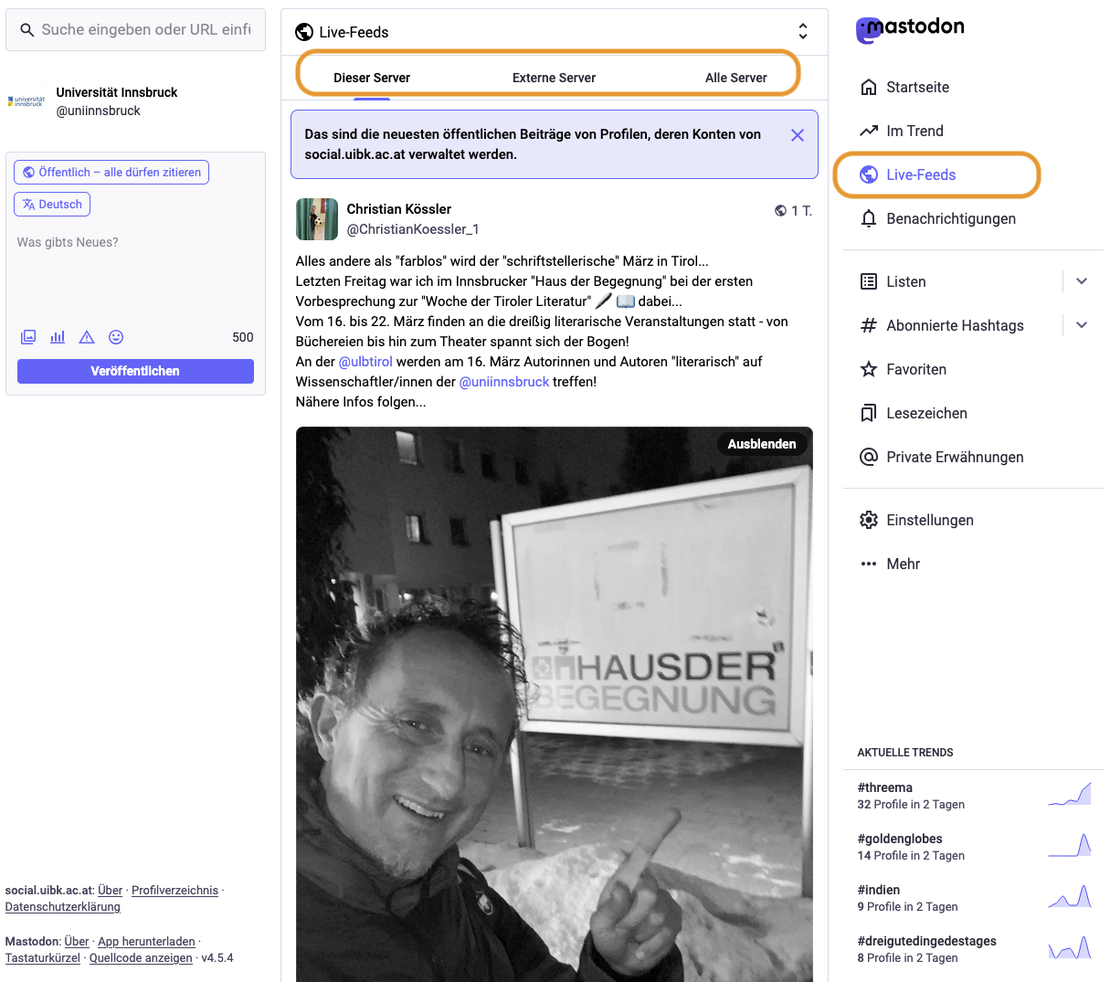
On the home page, you’ll see the feed containing all the posts from the profiles you follow. Under ‘Live Feeds’, you can view three further feeds:
- This server: Here you can see all posts from profiles on your home instance (e.g. social.uibk.ac.at, if you’ve logged in via the university’s staff instance).
- External servers: Here you can see posts from other instances, specifically those from all the profiles that people on your home instance follow.
- All servers: All posts from ‘External servers’ plus posts from your own home instance – effectively a combination of the ‘This server’ and ‘External servers’ feeds.

Further options
In addition, there are a few more useful options in the right-hand column:
- Notifications: These show you, for example, when someone reacts to your posts.
- Lists: These allow you to create your own ‘special feeds’, so to speak. Add a number of accounts to a list and you can then view a feed under ‘Lists’ that contains only the posts from those accounts.
- Followed hashtags: Shows you posts containing specific hashtags that you follow.
- Favourites: An overview of all posts you’ve marked with a star.
- Bookmarks: An overview of all posts you’ve bookmarked.
- Private mentions: An inbox for private messages.
- Settings: Takes you to the section where you can manage your account settings.
- More: further information, such as details of the accounts you have blocked, etc.
Current trends
At the bottom right, you’ll find the latest trends: these are the hashtags that are currently popular on your home instance.
Mastodon still looks pretty empty on my end!
In Part 3 of our guide, we’ll explain how to find interesting profiles and provide further Tips for using Mastodon.