
VPN
With VPN (Virtual Private Network) access, you can also access university-restricted services such as local intranet applications outside the university data network. The device using the VPN access is virtually integrated into the university network and thus receives all the rights of a computer from the local network.
In order to establish a connection to the university's services via VPN, a VPN client must be installed on your device. We recommend the Cisco Secure Client. However, a connection via Cisco AnyConnect is still possible.
When do I need VPN
VPN is required for:
- direct access to network drives (drives "J:", "M:" or similar) (Instructions)
- Confluence Wiki
- Use of certain software products (especially with network licences, e.g. Matlab, Maple, Mathematica, Origin, Mathcad, SPSS for employees)
- Sharepoint
VPN is not required for:
- E-mail for staff and students both with mail clients and via Webaccess
- VIS:online and LFU:Online
- Intranet and Uniwiki
- our Ticket system
- Copying files to and from network drives (I:, J:) (Instructions)
- OpenOlat
- Library system
- general surfing
- electronic Library databases and journals of the ULB
Requirements for VPN
For VPN access you need
- a functioning internet connection from any provider
- a user ID at the University of Innsbruck including the service data network access. The service is automatically activated for all students and employees of the university when the account is set up
- the installation of the Cisco Secure Client on your computer
We ask for "fair use": use the VPN connection only as long as you are using the protected applications of the university and then disconnect again. By doing so, you release the VPN connection for other users and enable us to save licence costs and continue to offer the service in this form.
Technical description
When a VPN connection is established, a tunnel is created between your device and our Cisco VPN server.
After successful validation, your PC is integrated into the university's data network. For this purpose, it is temporarily assigned a dynamic IP address of the University of Innsbruck.
In order to achieve increased security and to prevent a simultaneous break-in via the "back door" of your PC, your operating system will restrict direct communication from your PC to the VPN tunnel for the duration of the VPN session.
We recommend using the Cisco Secure Client, as it supports all major platforms.
Instructions Cisco Secure Client
In order to connect to the university's services via VPN, it is necessary to install Cisco Secure Client.
Installation / Update
You can download the current version of the Cisco Secure Client for Windows, macOS and Linux from the ZID download page. It is necessary to sign in on the university login page in order to access the site.
For your mobile devices, you can find the Cisco Secure Client / AnyConnect in the respective AppStore.
- Download the software to your device via Download page of the ZID.
- Execute the downloaded file. You will find it on your device (usually in the download folder). For Windows, the file name is e.g. cisco-secure-client-win-.....-core-vpn-predeploy-k9.msi.
- Follow the instructions of the Setup Wizard. The Cisco Secure Client must be installed on the PC with admin rights.
- You can now use the Cisco Secure Client.
Usage
Please note: a VPN token is now required instead of your university password to log in to the VPN service in the Cisco Secure Client.
1. Open https://vpntoken.uibk.ac.at and log in to the university login page
2. Open the Cisco Secure Client on your device.

3. The first time you connect, enter the name of our server vpn.uibk.ac.at in the empty field. From the second connection setup, the name VPN Universitaet Innsbruck will be displayed.
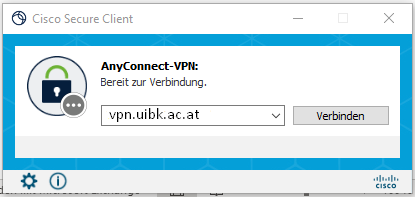
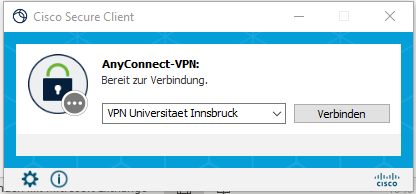
4. click on Connect. A new window will open.
5. refresh (with F5) the page https://vpntoken.uibk.ac.at and copy the token (one-time password).
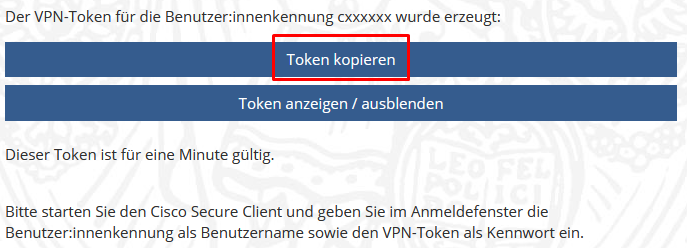
6. go back to the Cisco Secure Client and enter your university user ID in the Username field and the token you just copied in the Password field.
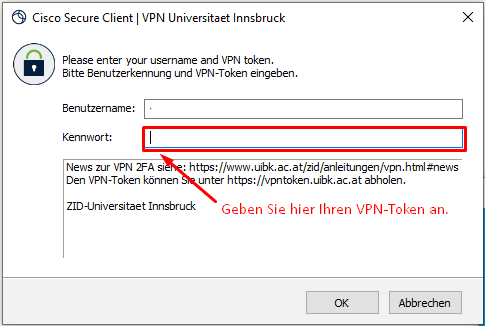
7. click OK. A new window opens.
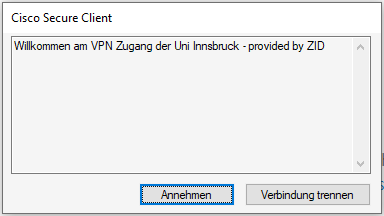
8. click on Accept. The connection will now be established.
For security reasons, access is generally blocked for a certain period of time after 5 failed attempts with an incorrect password. (Block_Brute_Force)
Terminate Client
After a successful connection has been established, you will find the Cisco Secure Client icon in the taskbar (ball with a lock).
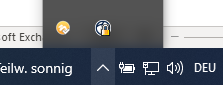
The closed lock next to the icon indicates that the VPN connection has been successfully established.
To terminate the connection, open the Cisco Secure Client and click on Disconnect.
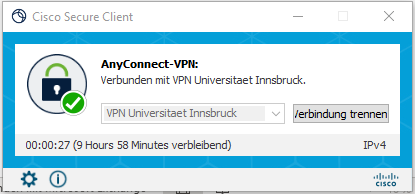
To avoid using up valuable VPN licences unnecessarily, we ask you to end the connection manually when you have finished working.
Additional information
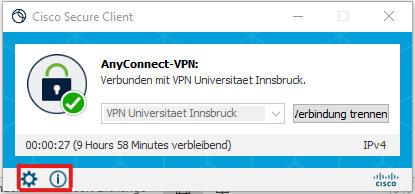
- Cogwheel symbol: further information on the VPN connection; view and change settings.
- i symbol: Information about Cisco Secure Client, e.g. programme version.
- After 30 minutes of inactivity (no packets are transmitted) and after 10 hours of maximum connection time (9 hours .... Remaining), the connection is automatically interrupted. You must then log in again.
VPN options
The behaviour of the vpn tunnel can be controlled by adding options separated by _ to your user ID.
The following options are possible:
| Option | Benefit |
|---|---|
| split | Split tunnelling is activated, i.e. only traffic to the university is sent to the VPN server via the VPN tunnel. The remaining traffic arrives at its destination without a diversion and unencrypted. |
| long | Increased (maximum) session timeout - two days instead of 10 hours |
A registration with cXXXXX_split_long therefore gives you a long-lasting split tunnel.
Known problems and solutions
During installation, it is claimed that the Cisco Secure Client is already installed.
This is due to a previous, invalid removal of the software by deleting the programme folder.
Remedy: You can remove the still incorrect reference by executing the command sudo pkgutil --forget com.cisco.pkg.anyconnect.vpn
in the terminal.app.
The software offered has been tested by the ZID and can be used without hesitation.
Unfortunately, usability and security are often opposites.
The introduction of two-factor authentication, especially for external network access via VPN, has been planned for some time and is absolutely necessary in the current IT security environment.
Naturally, entering two factors always means additional work. The procedure we have specifically chosen for VPN is primarily due to our decision to offer continuity in the VPN product and at the same time to be able to support several procedures (TOTP, Webauthn, ...) in the 2FA procedures.
The process takes some getting used to. Nevertheless, we are working on making the process as simple as possible.
Please use e.g. https://www.whatismyip.com/ to determine the official IP address assigned to you by your provider.
Send this with a short error description to innet-admin@uibk.ac.at.
Due to problems with the rather complex installation of the Cisco Secure Client, we recommend the use of "OpenConnect", which is now included in almost all Linux distributions.
Please enter the address vpn.uibk.ac.at as the VPN server.
Some security products such as Zone-Alarm, Avira, McAffee often cause problems.
The security software also tries to analyse web traffic and works on your system with a ManInTheMiddle attack to check HTTPS connections. These measures then prevent the VPN connection from being established.
Please uninstall these products on Windows 10 and above. Windows already offers good basic protection with "Virus and Threat Protection".
Click on the cogwheel icon at the bottom of the Cisco Secure Client and activate the Allow local LAN access when using VPN (if configured) option in the Preferences tab.
Idle Time Out - If NO packets are transmitted via the VPN tunnel, the connection is terminated after 30 minutes. You can find a packet counter in the Cisco Secure Client under statistics.
If necessary, start an application that regularly requests/consumes data.
Session Time Out - Sessions can exist for a maximum of 10 hours. The remaining time is displayed in the AnyConnect client at the bottom of the GUI.
The limits are used to avoid using unnecessary resources, especially licences.
For special cases, you can also use our VPN option long.
An error message appears in the browser stating that you are not authorised to use the server. A proxy server of your provider is probably configured in the configuration of your web browser, which you are no longer authorised to use after establishing a VPN connection with the Uni IP address assigned to you.
Remedy:
Deactivate the proxy server in the web browser. In Internet Explorer, you can find the setting under
Extras/Internet options/Connections/Yourprovider/Settings or
Tools/Internet Options/Connections/LAN Settings/Settings .
The options "Use proxy server for this ...." and the two options under "Automatic configuration" must not be activated.
Use your web browser to check whether you are actually receiving an IP address from the University of Innsbruck. To do this, visit the website http://checkip.dyndns.org/
Your browser should return an IP address of the VPN pool of the University of Innsbruck as "Current IP Address:". These addresses usually start with 138.232. The IP is assigned dynamically when the connection is established.
If you are shown a completely different address, something is wrong with your routing settings on your PC, or you have configured an incorrect proxy server in your browser. The data packets then do not travel via the VPN connection to the university and from there onwards, but via a different channel, which causes the database provider to reject your request due to lack of authorisation.
If all attempts to solve the problem fail, you can send us a DART file.
To create the file, proceed as follows:
- Download the appropriate DART software from Download page of the ZID and install it.
- In the Cisco Secure Client, click on the settings icon (wheel at the bottom of the GUI) and then select "Diagnostics".
Save the file created during diagnostics to your desktop and then send it to innet-admin@uibk.ac.
VPN news
- 21 October 2024:
We recommend everyone to update the Cisco Secure Client to the current version of the VPN software. - 4 March 2024:
In the course of increasing IT security, the university's services will be successively equipped with the Two-factor authentication.
For VPN access, this means a two-stage login process using a VPN token, which you first receive on the https://vpntoken.uibk.ac.at page and then enter as a password in the Cisco client.
Transition phase: Until 31 March 2024, you can still use your password in the client as an alternative. - 23 October 2023:
New VPN hardware put into operation. This software no longer offers web VPN and requires AnyConnect >=4.0, which also removes support for Windows7 32bit.
Please report problems to innet-admin@uibk.ac.at. - 18 June 2023: Block_Brute_Force:
For security reasons, access is generally blocked for a certain period of time (after the last failed attempt) after 5 failed attempts with the wrong password.